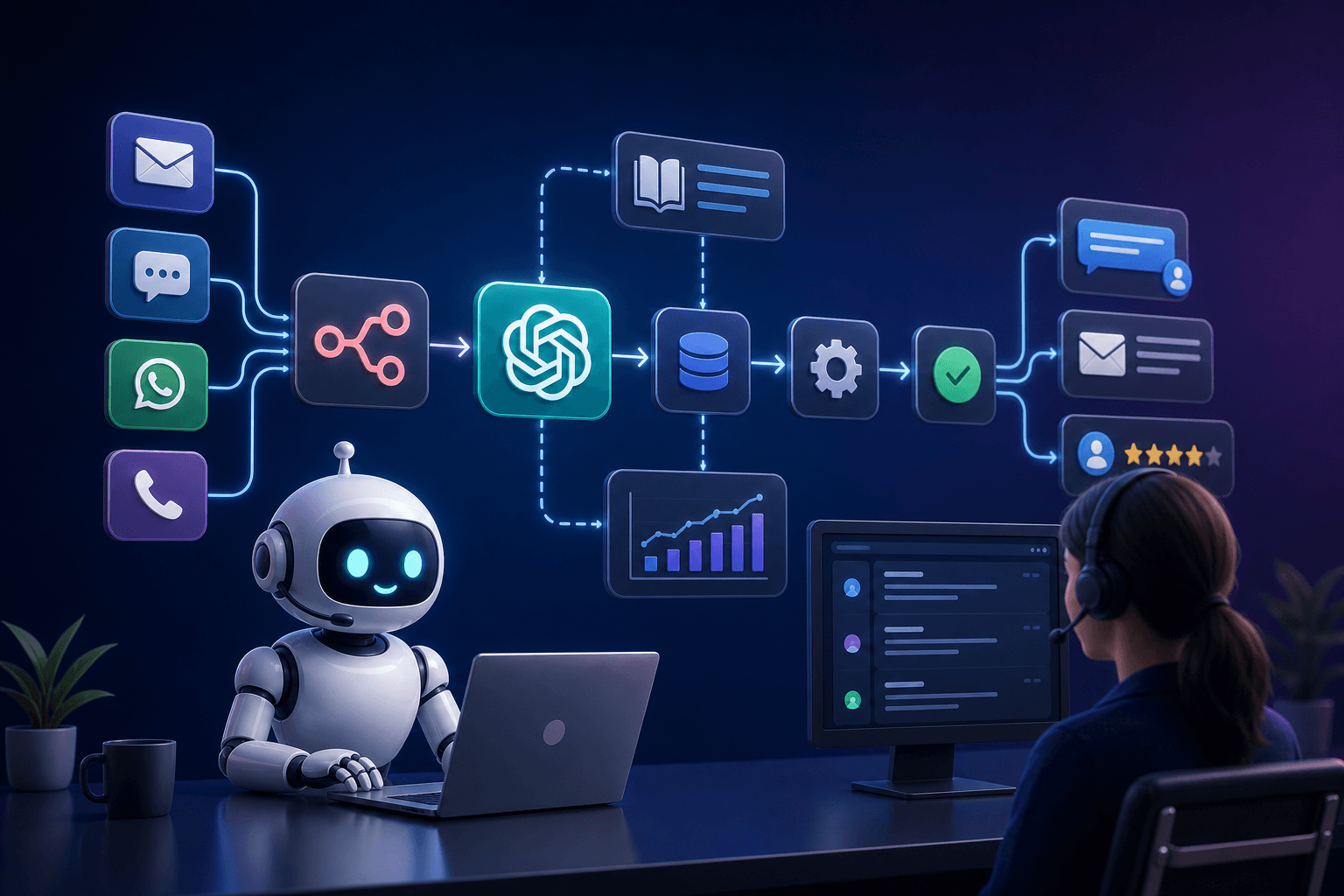

Support teams that handle repetitive tickets every day already know the problem. Zendesk's 2026 CX Trends report found that 68% of support teams cite repetitive, low-complexity tickets as their top daily time drain, yet fewer than 20% have automated any part of that queue. An n8n AI customer support workflow fixes that gap directly. It classifies incoming tickets with an OpenAI call, fires auto-replies for the resolvable ones, writes the result back to your CRM, and hands off the rest to a human with context already attached. The build takes days, not months.
What Is an n8n AI Customer Support Workflow?
An n8n AI customer support workflow is a chain of connected nodes that ingests incoming support requests, classifies them using an OpenAI API call, and dispatches a response or routes to a human agent. Each step is a separate node. Nothing happens in one big block of code.
The workflow handles four core jobs: classification, auto-reply, CRM write-back, and escalation flagging. That is it. This is not a full chatbot. It will not replace a senior rep handling a billing dispute or a product complaint that needs judgment. What it does is intercept the thirty questions that arrive every single day and answer them without anyone touching a keyboard.
Why n8n over Zapier or Make? Three reasons. N8n is self-hostable. The community edition has unlimited workflow runs. And the AI Agent node, which now supports multi-step reasoning chains natively as of March 2026, removes the need for custom Python glue code that older approaches required. As of May 2026, n8n reports over 90,000 active self-hosted deployments, with customer support automation ranking as the top stated use case in its community survey.
For the underlying model pattern that makes all of this possible, read the Model Context Protocol: How MCP Connects AI to Your Tools guide. MCP is the standard that lets your n8n workflow reach into external tools cleanly.
What Do You Need Before You Start Building?
Before you open n8n, gather three things. First, an OpenAI API key with GPT-4o mini access. GPT-4o mini pricing as of early 2026 is roughly 75% lower per million tokens than GPT-4 Turbo. For high-volume ticket classification, it is the cost-effective default. Second, a running n8n instance, either cloud or self-hosted. Third, a webhook-capable support channel: email forwarding via a service like Postmark, an Intercom webhook, or a plain HTML form that posts to a URL.
The most important pre-work is collecting 50 to 100 real past tickets grouped by resolution type. Pricing questions, order status checks, account access issues, and complex escalations are the four buckets that show up in almost every B2C or SaaS support queue. You need real examples because the classification prompt you write will be trained on this data in the prompt itself, not through fine-tuning.
You also need read-write API credentials for your helpdesk or CRM. HubSpot, Freshdesk, Zendesk, and Airtable all work. The choice does not matter much at this stage. What matters is that you can write a ticket status field and add a custom tag via API.
Time budget: the builder behind the original 4-day dev.to build log by ciphernutz completed a working prototype in four days, with two days spent on prompt tuning and one day on edge-case testing. That timeline is realistic for most teams.
How Do You Design the Workflow Logic Before Touching n8n?
Map the decision tree on paper first. Draw three columns: auto-resolve, route to agent, and escalate immediately. Put each ticket category in one column. This forces you to make the hard calls before code is involved.
Write the classification prompt as a plain text document before opening n8n. The prompt needs to include the ticket categories you defined, one or two example inputs per category, and the exact JSON output shape you want OpenAI to return. A clean output looks like this: {"category": "order_status", "confidence": 0.94, "suggested_reply_template": "order_status_v2"}. If the structure is clear, the Switch node downstream has nothing to guess.
Define your confidence threshold before you start building. If OpenAI returns a category confidence below 80%, default to a human-review queue. Do not risk a wrong auto-reply to save a few minutes. The ciphernutz build used 80% as the floor. Tickets below that threshold were routed to a draft queue where an agent approved the reply before it sent.
Keep the workflow to a single responsibility per node. If you combine classification and reply generation in one OpenAI call, debugging becomes painful when responses drift. One node, one job. This rule will save you hours during the shadow period.
How Do You Connect OpenAI to n8n for Ticket Classification?
Start with the Webhook trigger node. This node listens for incoming ticket payloads and maps the subject, body, and sender email to named fields. Every downstream node references these same field names. Consistency here prevents silent errors later.
Next, add the OpenAI Chat Model node. Select GPT-4o mini as the model. Set temperature to 0. Enable JSON output mode. Pass your classification system prompt as the system message and the live ticket body as the user message. The n8n Advanced AI Documentation shows the exact node configuration for structured output, including how to enforce a JSON schema on the response.
After the OpenAI node, add a Switch node. Branch on the category field in the returned JSON. Each branch maps to one of your four action types: auto-reply, escalate, log-only, or human draft. Keep branch names human-readable. You will read these names often during the monitoring phase.
Wrap the OpenAI node in a Try-Catch error handler. On API timeout or malformed JSON, the fallback route should send the raw ticket to the human queue with an automated alert. Silent failures in support automation are worse than no automation at all. A misrouted ticket that no one sees is a customer waiting with no reply.
How Do You Handle Auto-Replies and CRM Write-Back?
The auto-reply branch pulls the matching template from a lookup table. Use a simple n8n Code node or an Airtable lookup. Inject the customer name, ticket ID, and any relevant details into the template. Then fire the completed message through your email node or helpdesk API node. Do not generate the reply text with a second OpenAI call at this stage. Templates are faster, cheaper, and auditable.
CRM write-back uses an HTTP Request node or a native CRM node. Update the ticket status field, apply the AI-assigned category tag, and write the confidence score as a custom field. That confidence score becomes your audit trail. When you review misclassified tickets later, the score tells you which calls were borderline and which were confident errors.
The escalation branch does two things. It posts to a Slack channel with the full ticket transcript and the AI's category guess. And it creates a high-priority ticket in the helpdesk with that same context attached. The human agent who picks up the ticket starts with information, not a blank screen.
Add a deduplication guard before every CRM write. Check whether the ticket ID already exists in the system before writing a new record. Webhook retries are common. Without this guard, a single ticket can create three or four duplicate records in your CRM within minutes.
For teams building on Claude instead of OpenAI, the How to Train Claude to Match Your Brand Voice post covers prompt structuring that applies directly to the auto-reply template system here.
How Do You Test and Validate Before Going Live?
Replay your 50 to 100 sample tickets through the workflow in dry-run mode. Disable CRM writes. Disable email sends. Run every ticket through the classification node and record what category it gets assigned. Then manually check each result against what you know the correct category should be. Aim for 90% accuracy before you enable anything that touches customers.
Run a shadow period of 5 to 7 days after dry-run passes. During this period, the workflow classifies tickets and drafts replies, but a human approves each reply before it sends. This step catches prompt edge cases without any customer impact. The ciphernutz build used a 7-day shadow period. Most of the prompt fixes came from tickets that contained two intents in one message, which the initial prompt handled poorly.
Set up a monitoring node that logs every OpenAI call: the input, the output, the confidence score, and the final action taken. Review this log every day during the first two weeks. Patterns become obvious fast. One ticket type will keep getting misclassified. Fix the prompt for that category before the next review.
Define your rollback criteria before launch. If auto-reply accuracy on sampled audits drops below 90%, disable the auto-reply branch and revert to draft-only mode while you retune. Having this threshold written down in advance prevents the debate about whether things are "bad enough" to roll back. For more on building reliable AI automation, the How to Build AI Automation Workflows with n8n guide covers the full workflow lifecycle.
What Results Should You Expect in the First 30 Days?
Teams with well-structured ticket histories typically see 40 to 60% of inbound volume handled without a human reply. The gains concentrate in predictable categories: pricing questions, business hours, order status, and standard account access steps. These are high-frequency, low-variation. The workflow handles them cleanly.
Where gains stall: tickets that mix multiple intent types in one message, requests in languages your prompt does not cover, and anything that requires account-level data the workflow cannot fetch from your CRM in real time. These are the cases that stay in the human queue. That is the correct outcome. The goal is not 100% automation. It is the right 50%.
What to measure every week. First-response time on auto-replied tickets. Tickets closed without any human touch. Customer satisfaction scores on auto-replied tickets compared to human-replied tickets. Agent time freed per week, in hours. The Salesforce State of Service 2026 report notes that teams tracking these four metrics specifically are significantly more likely to maintain automation quality over time than teams that track only volume.
The iteration cycle is simple. Run a 15-minute weekly review of misclassified tickets. Pull 10 random tickets from the past week that got a wrong category. Read them. Edit the classification prompt. Rerun dry-run on those 10. The workflow improves faster through prompt work than through node rebuilds. Most builders spend too much time on the n8n canvas and not enough time on the text document that drives the OpenAI call.
The bottleneck in most support teams is not complex questions. It is the same thirty questions arriving every day. An n8n AI customer support workflow backed by a well-prompted GPT-4o mini classification call can intercept 40 to 60% of that volume, auto-reply to the resolvable ones, update the CRM without agent intervention, and escalate the rest with context already attached. The build takes days, not months. The discipline it requires is prompt engineering and honest audit, not software engineering.
Ready to start building? Download the n8n workflow JSON template from the ciphernutz dev.to build log, import it into your n8n instance, and swap in your own OpenAI key and CRM credentials. Your first dry-run can run this week.
FAQ
Can I build an AI customer support workflow with n8n for free?
Yes, with limits. n8n's self-hosted community edition is free with no run limits, so workflow execution costs nothing beyond your server. The only spend is OpenAI API usage. For a support queue handling 500 tickets per day using GPT-4o mini for classification only, expect API costs under 10 dollars per month at current 2026 pricing. Auto-reply generation adds cost but is still modest at that volume. If you use n8n Cloud, the free tier caps at 5,000 workflow executions per month, which may not be enough for a production support queue.
What OpenAI model should I use for support ticket classification in n8n?
GPT-4o mini is the right default for classification in high-volume support pipelines as of 2026. It is fast, inexpensive (roughly 75% cheaper per token than GPT-4 Turbo), and accurate enough for structured classification tasks when you supply clear category definitions and a few examples in the system prompt. Reserve GPT-4o for escalated or ambiguous tickets where reasoning depth matters. Avoid using a full GPT-4 class model for every ticket. The cost difference at scale is significant and the accuracy gain on routine ticket types is marginal.
How long does it actually take to build an n8n AI customer support workflow?
A working prototype with webhook intake, OpenAI classification, and a basic auto-reply branch takes one to two focused days if you have your API credentials ready and a sample ticket set to test with. The bulk of the time is prompt tuning, not node wiring. The ciphernutz build referenced in this post reached a testable state in four days, which included CRM write-back, escalation routing, and a shadow-period testing setup. Plan for another week of monitored live operation before fully enabling auto-replies without human review.
What support ticket types are safe to automate with AI?
Automate ticket types that have a correct answer the AI can retrieve or state without judgment calls: pricing questions, business hours, order status (if you can fetch the data), account reset links, and refund policy explanations. Do not automate tickets involving billing disputes, account security concerns, legal or compliance issues, or any ticket where a wrong answer creates material harm. A good rule of thumb: if a junior agent can answer it correctly in under two minutes using a fixed knowledge base, it is a candidate for automation.
How do I stop the n8n workflow from sending wrong auto-replies?
Three controls reduce wrong auto-reply risk. First, set a confidence threshold in your classification prompt and route anything below it to human review, not to the auto-reply branch. Second, run a shadow period where the workflow drafts replies but a human approves each one before it sends. This catches prompt failures without reaching customers. Third, scope auto-replies only to ticket categories where you have verified accuracy above 90% in testing. Leave all other categories in draft-only or escalation mode until you have enough data to trust the model on them.
Does this kind of AI support automation work for small teams?
It is often more valuable for small teams than large ones. A three-person support team that fields 200 tickets per day has no capacity buffer. Automating 40 to 60% of routine volume frees the team to handle complex cases without hiring. The build cost is low (days of setup, a few dollars per month in API fees) and the workflow runs without maintenance once the prompt is stable. The main constraint is having a clear sample of past tickets to tune the classification prompt. If your ticket history is thin or inconsistent, expect more prompt iteration before accuracy stabilizes.
How do I monitor an n8n AI support workflow after it goes live?
Add a logging node to every execution path that writes the ticket ID, the AI classification category, the confidence score, and the action taken (auto-reply, draft, escalate) to a spreadsheet, Airtable base, or database table. Review this log weekly during the first month. Sample 20 to 30 auto-replied tickets per week and score them manually for accuracy. Set a Slack alert if the workflow errors or if the OpenAI call returns malformed JSON. After 30 days of stable performance, monthly sampling is sufficient. Never turn off logging. It is your only audit trail when a customer disputes an automated reply.